





Mobile visual proof
Capture the mobile page state your team actually needs to review
Responsive pages can hide content, reorder sections, collapse menus, shift pricing cards, show different banners, and lazy-load important parts of the page at smaller viewport sizes. A desktop scrape does not prove that the mobile view is correct. ScraperFly helps teams capture mobile-sized screenshot evidence through the same API workflow they use for public page capture.
The goal is practical visual proof, not overclaiming device simulation. Use viewport-controlled screenshots to inspect the page state, add rendering when JavaScript builds the mobile content, and add waits or routing only when the target page proves those controls improve the capture.

What is a mobile website screenshot API?
A mobile website screenshot API captures a public web page as an image using a smaller viewport so developers, QA teams, monitoring systems, and content teams can review the responsive page state. Instead of opening a browser manually, the workflow sends a URL and screenshot options to an API, then receives a visual artifact that can be reviewed, archived, compared, or attached to downstream QA records.
The important word is viewport. This page is about mobile-sized visual capture, not a promise of real-device hardware behavior. A viewport-controlled screenshot can show how a responsive layout appears at a smaller size, but it should not be confused with named device emulation, touch gesture testing, network lab testing, or native mobile browser behavior unless those features are explicitly supported by the request workflow.
That boundary makes the feature more useful. Teams get a clear API path for public page screenshots without pretending that every mobile QA problem is solved by one image. Use the screenshot to prove what the browser rendered at the requested size, then decide whether the workflow needs deeper device testing elsewhere.
When are mobile screenshots worth capturing?
Mobile screenshots are most useful when the visual state matters. A content parser may only need HTML or Markdown, but a QA workflow often needs proof that a public page looks correct at a smaller viewport. This is especially true for landing pages, pricing pages, product pages, documentation pages, local pages, checkout-adjacent public pages, dashboards, and monitoring targets where layout, visibility, or page state affects trust.
They also help when teams need to communicate evidence to people who will not inspect HTML. A screenshot is easier to review in a ticket, QA report, monitoring alert, customer support thread, or compliance archive. If the question is “what did the page show?”, a visual artifact can save time.
| Use case | What the mobile screenshot proves | Best next step |
|---|---|---|
| Responsive QA | Sections, cards, menus, and CTAs fit the smaller viewport | Capture representative pages before release or monitoring |
| Visual monitoring | A public page still displays the expected state | Store screenshots for comparison and alert review |
| Content visibility | Important text or pricing is visible on mobile | Compare screenshot with text or HTML output |
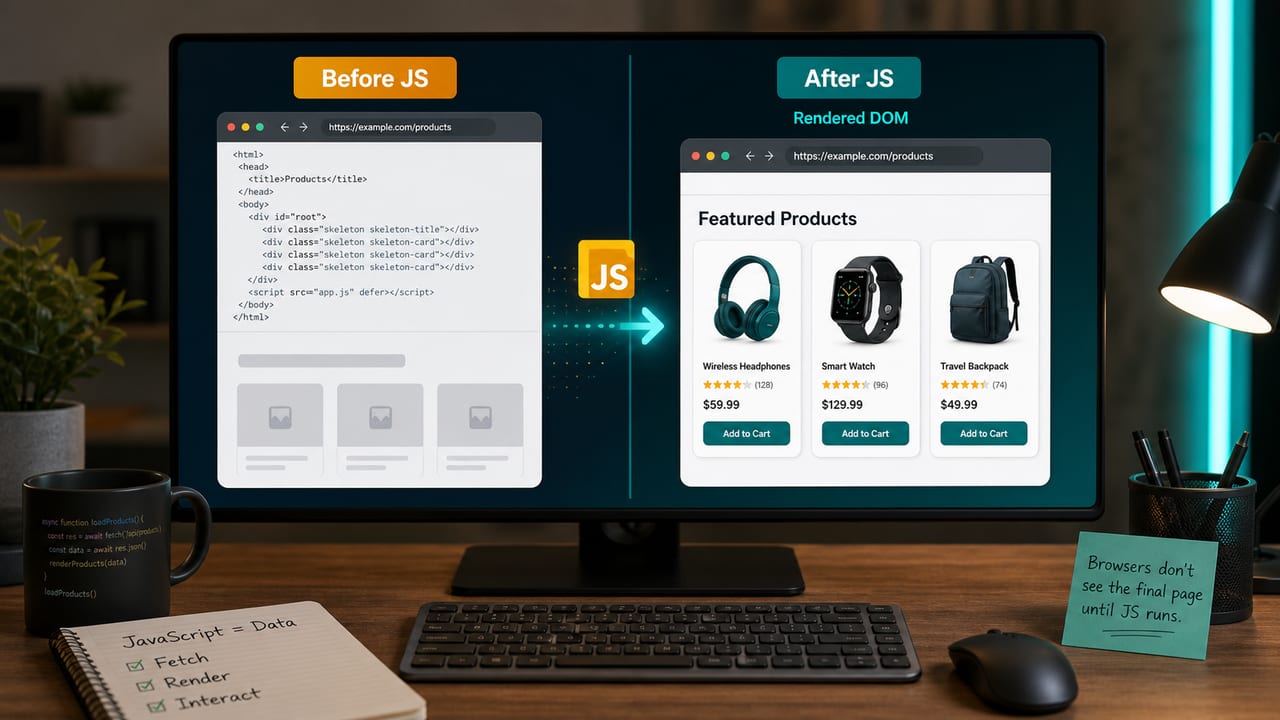
| Rendered page proof | JavaScript-built content appeared in the final browser state | Use rendering and wait controls when needed |
| Support or audit | A human-readable artifact shows what the public page displayed | Attach screenshot or PDF to a review workflow |
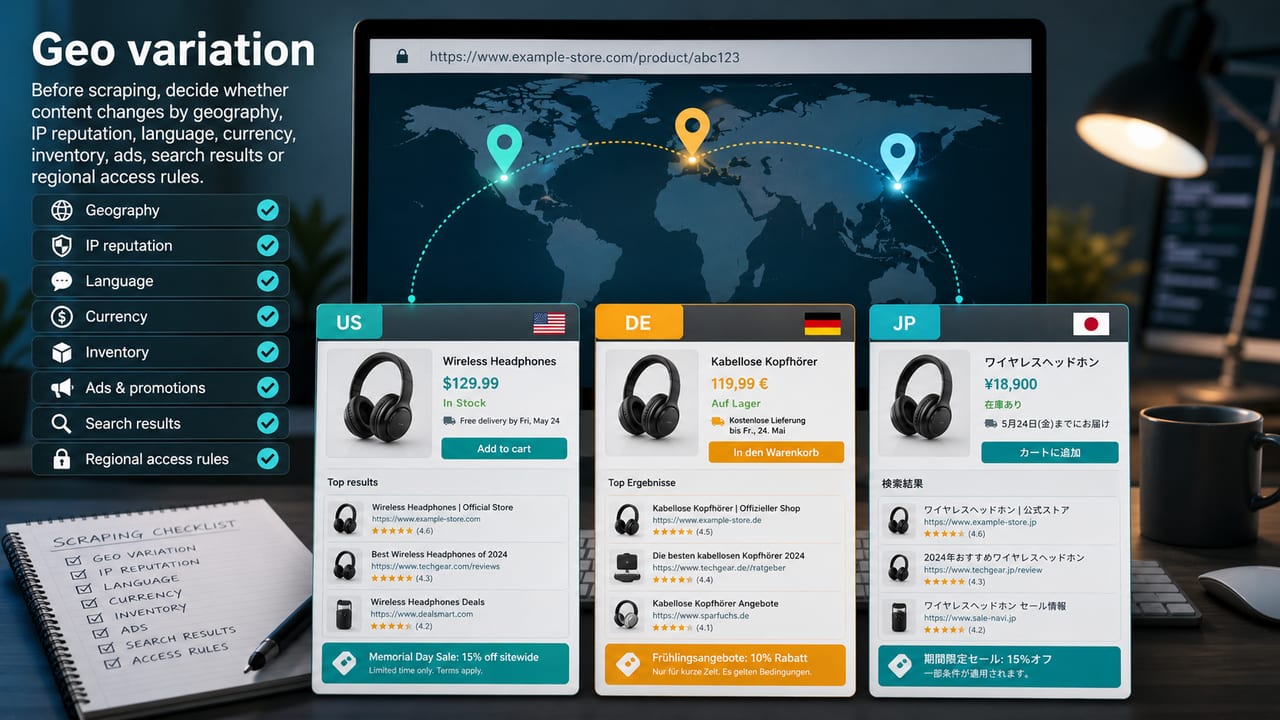
| Regional review | The mobile page can differ by country or language | Add country routing only when samples prove variation |
What should teams inspect in a mobile capture?
A screenshot is useful only when the team knows what it is looking for. The capture should answer a specific question: did the mobile layout load, did the visible content match expectations, did a banner cover the page, did a sticky element hide a CTA, did JavaScript finish, did the page redirect, or did the target return a different state?
ScraperFly helps by keeping screenshot output close to the request context. The visual artifact should be interpreted with the final URL, status, timing, content type, and other response evidence. If the image is blank or wrong, the team can inspect whether the problem is rendering, waiting, routing, blocking, or the target page itself.
| Inspection area | Questions to answer | Why it matters |
|---|---|---|
| Viewport fit | Do sections fit, stack, and remain readable? | Prevents desktop assumptions from hiding mobile layout issues |
| Content visibility | Are key messages, prices, forms, links, and CTAs visible? | Shows whether users and reviewers see the intended content |
| Overlays | Do cookie banners, popups, menus, or sticky bars block the page? | Explains why a capture may be technically successful but unusable |
| Rendered state | Did JavaScript load the final content before capture? | Helps decide whether waits or rendering options are required |
| Navigation state | Did the final URL redirect to the expected public page? | Separates layout issues from delivery or source changes |
| Visual evidence | Can a reviewer understand the page state without opening a browser? | Makes screenshots useful for QA, support, and archive workflows |
When should screenshots use rendering, waits, or routing?
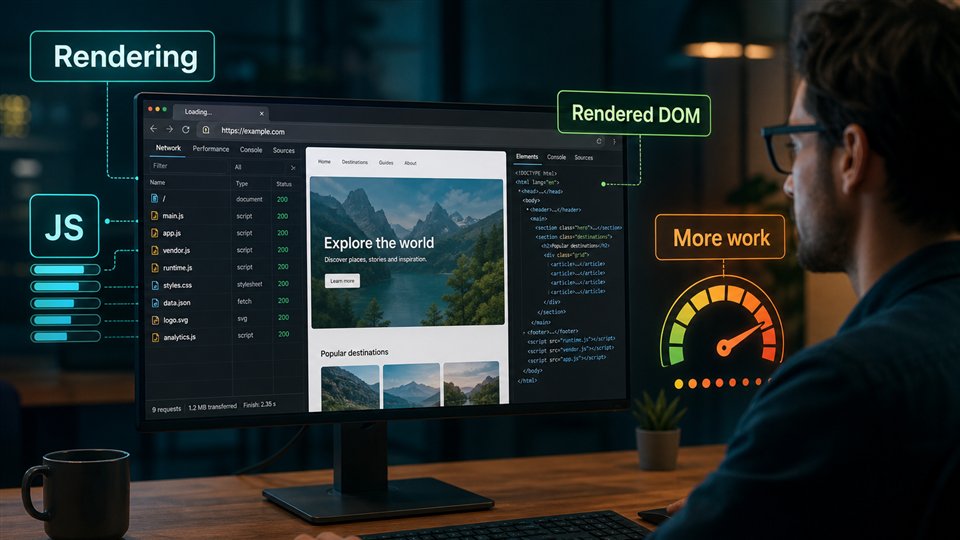
A mobile screenshot often needs browser rendering because the output is visual by nature. But not every capture needs every heavy control. Some public pages render quickly and consistently. Others need a short wait for lazy content, a cookie banner to settle, a route transition to complete, or an image grid to load. A smaller viewport can also change which content appears first and which elements load later.
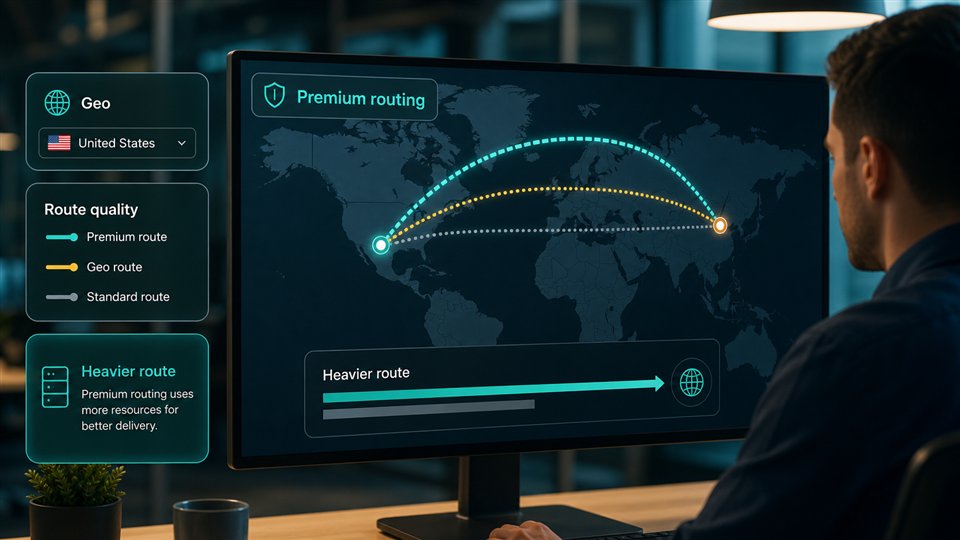
Use the JavaScript rendering API when the screenshot should include content produced by browser-side code. Use render wait when the page needs time after load. Use country targeting when public page state changes by market. Use stronger routing only when simple delivery fails or returns a blocked state.
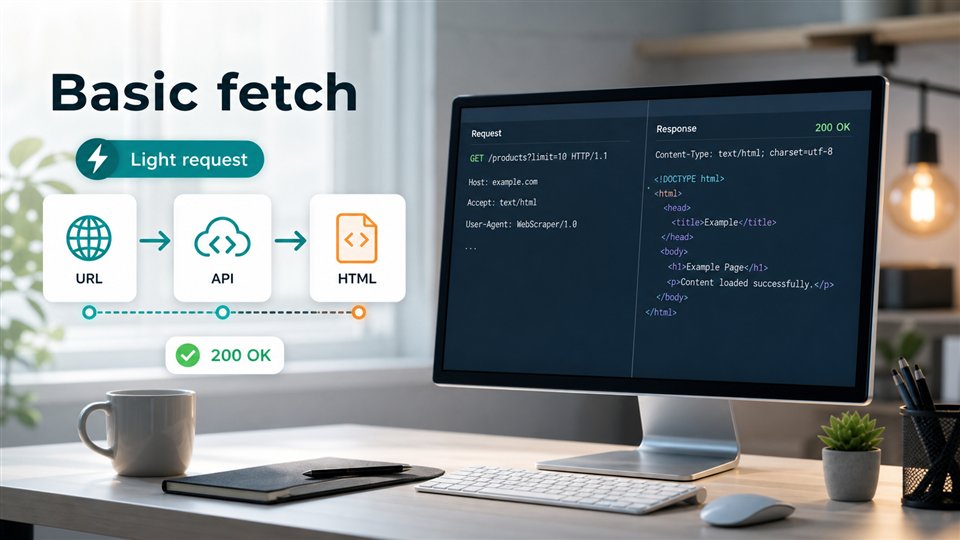
The practical rule is the same as other ScraperFly workflows: begin with the smallest request that proves the page state, then add controls based on evidence. A screenshot that already shows the correct page does not need extra weight.
How is a mobile screenshot different from HTML or PDF output?
A screenshot answers a visual question. HTML answers a structural question. Text and Markdown answer readability questions. PDF answers archive and review questions. Mobile screenshots are excellent when a person must see the responsive page state, but they are not the cheapest or cleanest input for machine parsing.
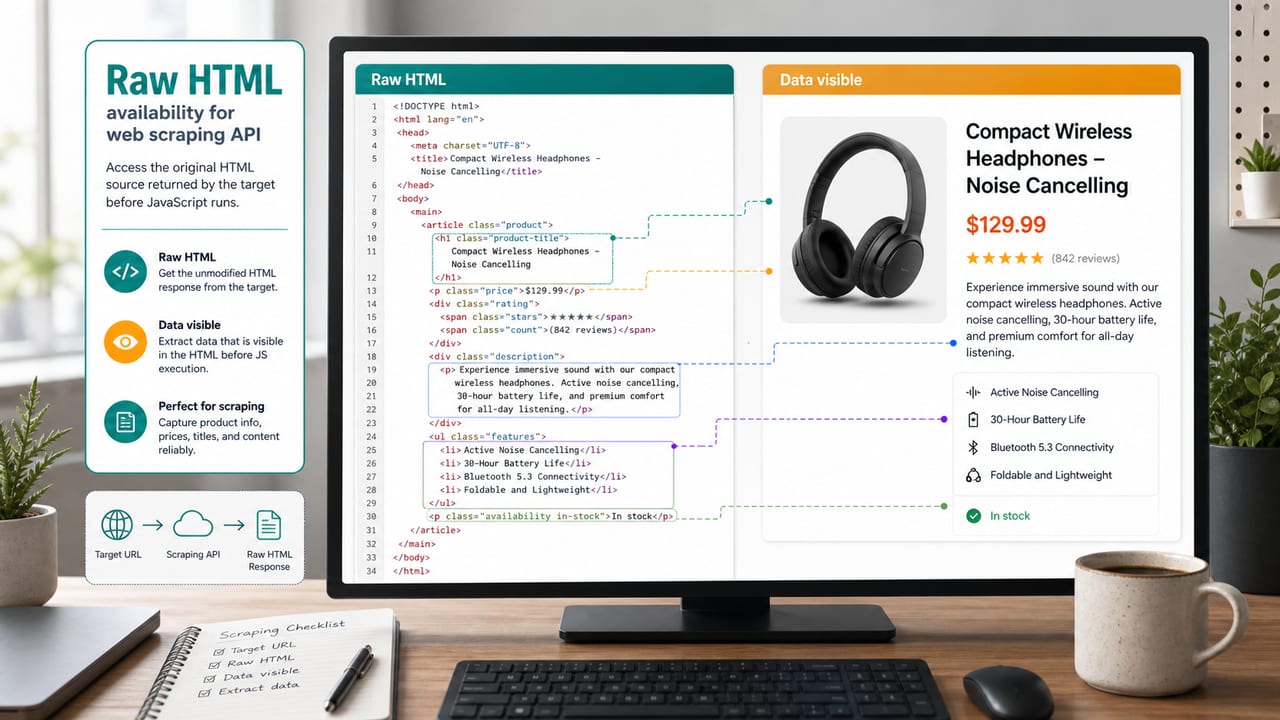
Use screenshots alongside other formats when the workflow needs both evidence and data. For example, a monitoring system may capture text for automated comparison and screenshots for human review. A QA workflow may store a screenshot for visual proof and JSON metadata for status, final URL, and response context. A product team may use screenshots to inspect mobile layout while using HTML or Markdown to feed content checks.
| Output | Best suited to | Mobile screenshot relationship |
|---|---|---|
| Screenshot | Responsive QA, visual proof, monitoring review, layout evidence | Shows the rendered page state at a viewport size |
| HTML | Parsers, selectors, links, source structure, DOM relationships | Better for extraction when visual proof is not needed |
| Rendered HTML | JavaScript-built page content and DOM after execution | Useful companion when screenshot content must also be parsed |
| Text | Search, indexing, lightweight content comparison | Cheaper for machine checks that do not need layout |
| Markdown | AI review, readable summaries, RAG/content workflows | Useful when headings and links matter more than pixels |
| Portable archive, review packets, compliance records | Often better for document-style sharing than a single image |
What mistakes make mobile screenshot workflows unreliable?
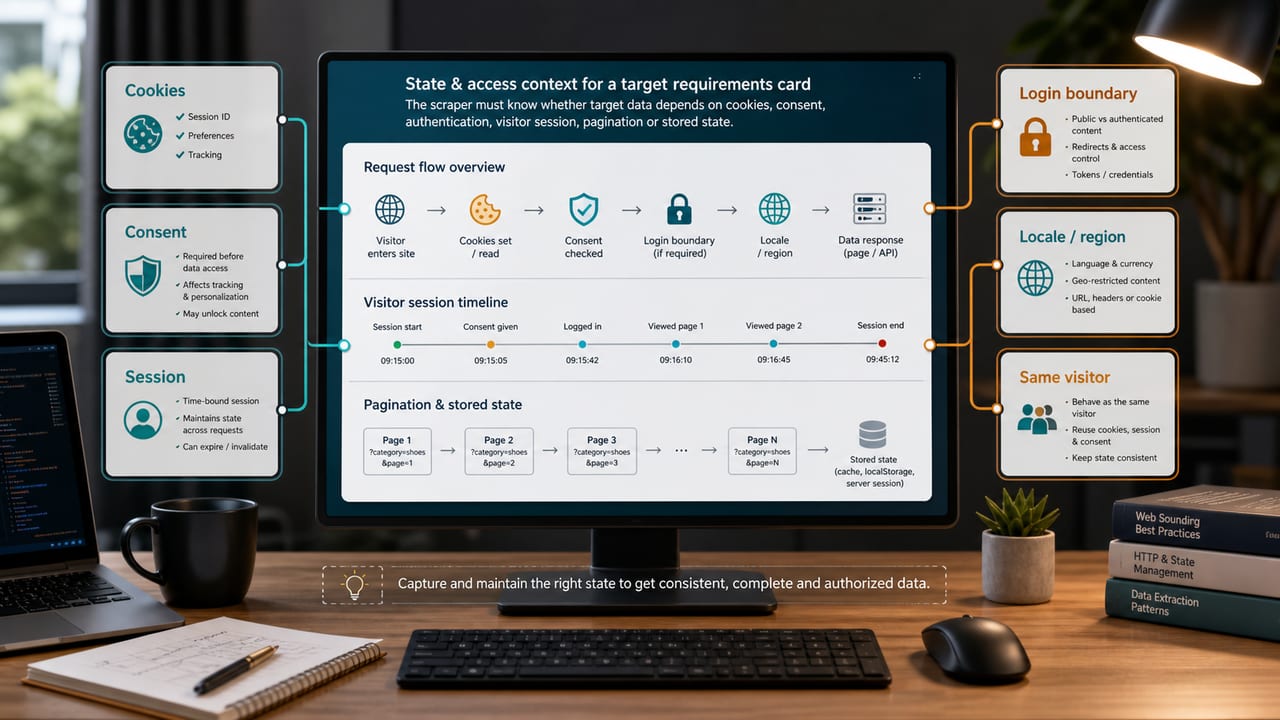
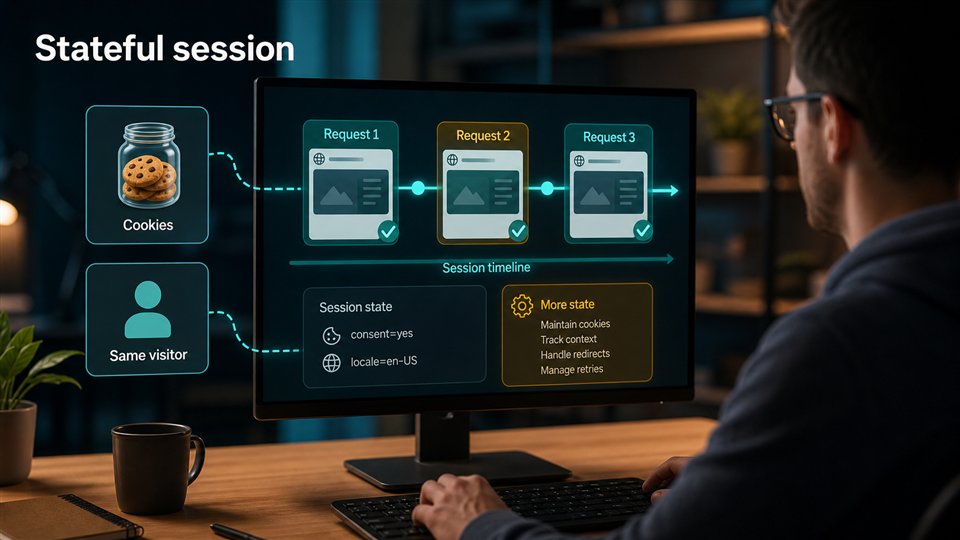
The common mistake is treating a screenshot as a magic truth source. A screenshot is evidence of a specific capture state. It depends on viewport size, timing, rendering, routing, cookies, banners, and the target page response. If the workflow does not record those conditions, the image becomes hard to interpret later.
Assuming desktop and mobile are equivalent. Responsive pages can reorder, hide, or lazy-load content. Capture mobile state when mobile visibility matters.
Calling viewport capture real-device testing. Keep the claim precise. A viewport screenshot is useful, but it is not full hardware, touch, network, or device-lab emulation.
Taking screenshots before the page settles. If lazy content, banners, or route changes matter, test wait timing with representative pages.
Using screenshots as parser input. Screenshots are for visual proof. HTML, rendered HTML, text, Markdown, or metadata are usually better for machine extraction.
Escalating every capture. Rendering, premium routing, country targeting, and visual artifacts add weight. Use them when they improve the evidence.
How should teams start with ScraperFly?
Choose a small mobile screenshot sample before scaling: one simple public page, one JavaScript-heavy page, one page with a sticky header or banner, one regional page if geography matters, and one page where the visual state will be reviewed by a human. Capture each with the simplest useful request profile and inspect whether the screenshot answers the intended question.
Then decide which controls belong in the production workflow. Some URLs may need only screenshot output and a mobile viewport. Others may need rendering, waits, headers, sessions, country routing, premium routing, or PDF output. Use the API Builder to test the request shape, compare with the screenshot and PDF API guide, and review pricing before scaling recurring captures.